Up next in 10

HOW TO CONVERT DATES TO WEEKDAYS IN EXCEL
Jul 31, 2025

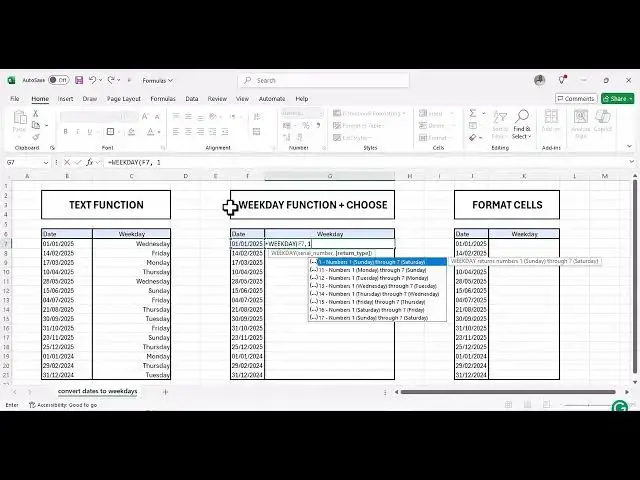
Discover how to easily convert dates to weekdays in Excel using the TEXT formula, enhancing your data presentation. This tutorial explores the WEEKDAY function in Excel, offering a quick solution for anyone seeking to better manage their data. Perfect for those aiming to refine their excel date format skills!
Show More Show Less View Video Transcript
0:00
Hi everybody and welcome back to Excel
0:03
Wiz. In today's video, I'll show you how
0:05
you can convert dates to weekdays in
0:07
Excel using just three simple formulas
0:10
to achieve uh the results that you can
0:13
see right here. That is by the use of
0:15
text function, weekday function plus
0:17
choose and format cells. Let's get
0:20
started.
0:22
Method number one, we are going to use
0:24
the text function. So what you need to
0:27
do is have your dates on one column and
0:29
a week day column. So in the week uh
0:34
column on one cell
0:37
start typing your text function that you
0:40
start by your equal sign start typing
0:43
text
0:49
and then um click on the first date
0:54
a comma
0:56
and then to be able now to use the date
0:59
format use your double quotation marks
1:03
in four ds. 1 2
1:08
1 2 3 4 and then close your parentheses
1:12
again and close your bracket and click
1:16
enter. As you can see
1:19
this day, the 1st of January uh
1:24
the 1st of January 2025 was on on a
1:28
Wednesday. So you can just drag and drop
1:30
to fill in the rest. As you can see, uh
1:34
the last day is on Tuesday.
1:37
Uh for readability, let me just get rid
1:40
of uh let me get rid of all these
1:43
borders.
1:50
[Music]
1:53
So as you can see, it's all clear. So
1:56
that's how you use the text function to
1:59
convert your dates into week days. It's
2:02
that simple.
2:05
Method number two, we are going to use
2:07
the weekday function. We are going to
2:08
use it in two ways. The first one, we
2:11
are going to combine our weekday
2:13
function with choose. And the second
2:14
way, we are just going to use the
2:17
weekday function. However, you have to
2:19
keep in mind that when you only use the
2:21
weekday function, you'll get your you're
2:24
going to get your week days in terms of
2:26
numbers and you have to know that
2:28
offhead which is not really reliable.
2:31
This is why I I recommend to use you to
2:34
use the weekday function using adding it
2:38
with choose. So let's start with the
2:40
first one. Let's uh try and do with J
2:45
weekday
2:47
your equal sign to start off your
2:49
formula. Then click on weekday
2:53
and then select
2:57
select your date
3:02
comma and then
3:04
you input number one. So when you use
3:07
number one, number one is going to
3:09
return uh it number one is um Sunday. So
3:15
the numbers number one starts from
3:17
Sunday as you can see through number
3:20
seven which is going now to be on
3:22
Saturday and then close your parentheses
3:24
and hit enter. So you have to manually
3:27
know which day it is. So day four
3:31
represent Wednesday and you can drag and
3:33
drop like this.
3:36
But as I said, we don't need this
3:39
because you have to keep you have to go
3:41
extra mile to work. So let's just use a
3:45
simple one which is going to give us the
3:47
exact same results as the text function.
3:52
So weekday plus choose function. You're
3:55
going to start with choose your equal
3:58
sign and then
4:01
[Music]
4:03
take choose and then start with now week
4:05
day. Take your weekday function.
4:11
Once that's done, h get your date cell
4:16
comm uh close it with parenthe close
4:19
your parentheses and then comma and then
4:22
now start typing in the
4:26
the days that you want. If you want it
4:28
in full dates, you can write that. But
4:29
in this case, let's try and just use a
4:32
small dates,
4:34
small week day, sorry.
4:37
So we'll begin by Sunday which is the
4:40
first day of course.
4:50
So let me fill this and show you.
4:54
So as you can see I've typed in Sunday,
4:57
Monday, Tuesday, Wednesday, Thursday,
4:58
Friday all the way to Saturday. And then
5:01
now click
5:04
[Music]
5:11
And lastly, the last method that you can
5:13
use to convert your to convert your
5:17
dates to weekdays, you're going to use
5:19
the format cells. So, what we're going
5:21
to do, let's just copy this so you can
5:24
see the difference.
5:26
Copy your dates.
5:33
Right click and copy your date. Copy and
5:37
paste them here just as they are. So
5:40
once that's done, let's align them to
5:43
for easier visibility. Once you align
5:46
them like this, uh highlight them,
5:49
double click and then click on format
5:52
cells.
5:53
On format cells under category, click on
5:56
custom.
5:58
Under custom, you can choose any. Just
6:02
type in the the way we did with the text
6:05
function this time around. Just type in
6:08
4 days. 4 days.
6:13
And click on okay. And as you can see,
6:16
we got the same results just like the
6:18
previous ones. We have Wednesday for the
6:20
first day, uh Tuesday for the last day,
6:23
Thursday for the second last day. So,
6:25
this is how you can convert your dates
6:28
to weekdays in Excel using those three
6:30
simple formulas. You've got any
6:32
questions, please feel free to leave a
6:34
comment in the comment in the comment
6:36
down section. And if you want us to
6:39
create a specific specific video, please
6:42
feel free to tell us again. And as
6:45
always, thank you very much for watching
6:46
and I hope you really gained a lot of
6:48
insights from this video and see you
6:51
again in the next video. Goodbye.