0:01
hello and welcome to excel with and in
0:03
today's video I'll show you how you can
0:05
create python in Excel using the
0:08
Microsoft 365 Insider program let's get
0:13
started so uh open your Excel sheet and
0:16
under file click on file go to account
0:20
under account you need to look for
0:23
Microsoft 365 Insider uh click on it and
0:27
change channel you need to change your
0:30
channel uh if it's in current Channel
0:34
preview please change it to better
0:36
channel uh click agree to all the terms
0:38
and conditions and click on okay so once
0:42
that's done uh move back to your Excel
0:49
formulas you should see python already
0:53
installed in but if you do not see it
0:56
like I can't see it on this uh sheet uh
0:59
there's something else you can actually
1:02
do but before we move on to that let's
1:09
account there may be cases where you
1:11
will not uh be able to find Microsoft
1:14
365 inside right here so do not panic if
1:18
you do not find it it only means that
1:20
your Exel is not updated to the uh most
1:24
recent version so you could actually
1:27
come click on update options
1:31
and update now and Excel will look for
1:34
Microsoft will look for uh the latest
1:36
version and update it for you close uh
1:41
work alternatively you could also uh
1:45
move to I'll show you this
1:49
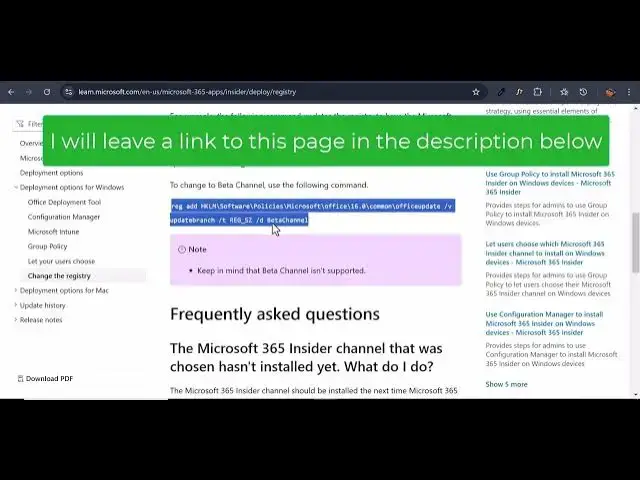
page you could move on to um Lear
1:53
Microsoft and then copy this code once
1:57
you do that open your comp M
2:01
prompt you should run as an
2:07
administrator on once that's done paste
2:10
your code and then click on
2:15
okay and then you should see that the
2:17
operation has been completed
2:23
exit and go back to your Excel sheet
2:26
once that's done you will find uh your
2:29
Microsoft 365 Insider has been uh
2:33
brought on this page so from there now
2:36
you can change your channel from current
2:40
Channel as well if at the beginning of
2:43
it you could actually see if your micro
2:46
if your Exel is already on better by
2:48
looking at at the about down here it
2:51
should be better Channel already so once
2:55
when all that has been done you move
2:58
forward to looking for or your python in
3:00
file and as previously said if you do
3:06
panic uh you can do this move back to
3:10
file and home or any other tab click on
3:14
customize the ribbon move on popular
3:19
commands I click on uh all commands and
3:22
then look for look for insert
3:27
python it's under I so just look for it
3:35
here here it is so once you got it uh
3:39
move to the main tabs and choose a tab
3:41
that you'd like to you'd like the insert
3:45
you'd like your python to be
3:49
under in this particular video I'll
3:52
choose home so click on home uh create a
3:56
new group once it's created rename it
4:01
let's rename our group to be
4:08
Python and then add the python under it
4:11
and then click on okay once that's done
4:14
you should come to home and you're
4:17
supposed to find a python here so that's
4:20
how you can add you can activate python
4:26
sheet alternatively if currently you do
4:30
not everything that I've tried to
4:33
explain has not worked do not worry you
4:35
could actually use it as an add in but
4:38
you have to ensure that you're using
4:41
365 uh latest version so go under Home
4:45
tab click on addin and look for python
4:49
for Excel and add this is actually the
4:52
simplest for way for you to activate or
4:55
use python in your Excel sheet just give
4:58
it a few seconds and it's going to
5:02
load and there we go you have your home
5:05
you have editor you have your functions
5:08
and output you could now start using
5:11
Python and every time you need to use it
5:14
you can just come here and uh access it
5:20
tab so that's how you can in activate
5:24
your python in Excel in those two two
5:27
different ways if you have any other
5:30
questions regarding this uh installation
5:33
of python in Excel please feel free to
5:36
uh leave a comment in the comment
5:37
section and if you like the video please
5:40
like share and subscribe and we'll see
5:42
you again in the next video bye